
Guide To Using Raisers Edge
Logging into Blackbaud Hosting Site
Using your web browser, use the site provided when setting up your Username/Password. The invitation to do this will be provided by the Island Registrar.
At this point, the system will check for the Citrix Workspace, if you do not have it installed on your computer, the screen will prompt you to install it. Install the Citrix Workspace. Once installed, this login screen should appear:
Start The Raiser’s Edge
Double click the icon to begin loading the program. This can sometime be very quick and sometime very slow.
Welcome to Raiser’s Edge
This is a restricted access version of the Raiser’s Edge. Registrars only have View/Edit/Add/Delete capabilities on certain data relating to registration.

Find And Open Your Conference
On the left-hand side of the screen, click “RECORDS”. From the RECORDS menu, click “EVENTS”.
RECORDS > EVENTS
- Open an Event – Allows you to search for an event if you do not know the name of it.
- Quick Find – If you know the name of the event, use Quick Find to open it.
- Recently Accessed Records – Once you open your event for the first time, it will appear here for easy access.
Viewing The Conference Information
When you open your conference, your default screen is the PARTICIPANTS tab. This is a list of all registered individuals for your event.
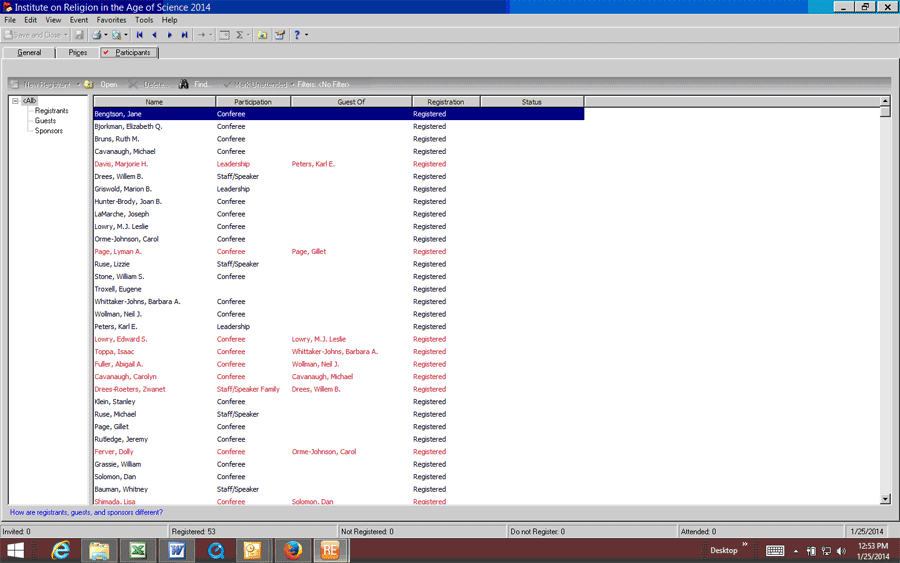
The viewable data on this screen includes:
- Name – Last, First, Middle Initial from their main record in our database. For corrections to main record information see EDITING CONSTITUENT DATA.
- Participation – Used to categorize roles for sorting purposes.
- Guest Of – When two or more individuals register on the same online registration or paper form, one is considered the MAIN and the others are considered the GUEST OF the MAIN. This allows us to group conferees together for billing purposes. MAIN individuals will appear in black text. GUEST OF individuals will appear in red text. For grouping errors, Individuals can be promoted from a GUEST OF to a MAIN automatically, but you can NOT make a MAIN to a GUEST OF without manual work. If you are uncertain about this function, please consult the Island Registrar.
- Registration – Status of registration process: Registered means the registration has been processed by the Island Registrar, Not Registered means the registration has not yet been viewed by the Island Registrar, Do Not Register means the individual registered other people, but not themselves and will be removed by the Island Registrar.
- Status – Current state of individual’s registration. Options include: Accepted, Waitlist, Cancel and should be updated by the conference registrar.
At the bottom of the screen which displays the total number for the Registration Status.
The GENERAL tab and PRICING tab contain information about your conference which is NOT-EDITABLE. If there is an error, please contact the Island Registrar.
Open A Conferee Registration Record
From this list of participants, double-click on the individual’s name to access their Registration record. It will open in a pop-up window.
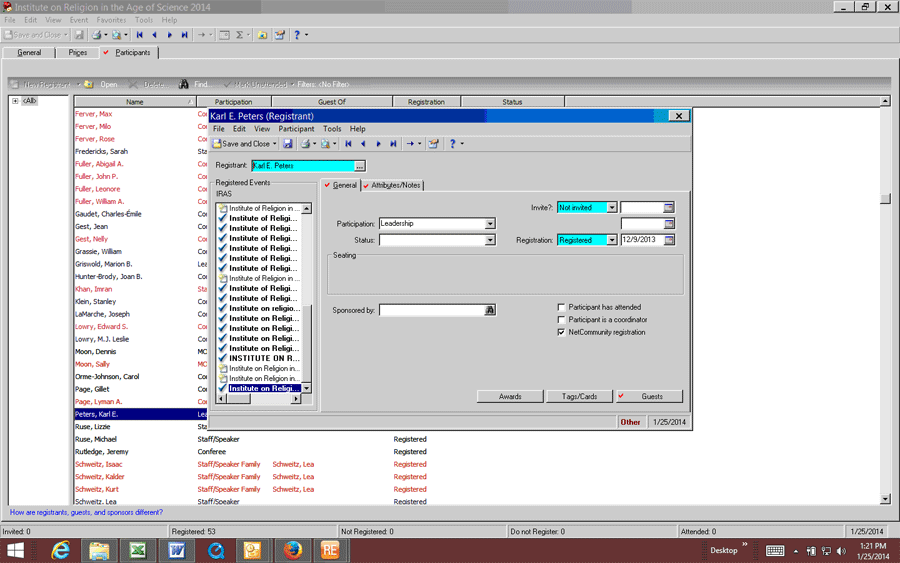
Viewable and Editable Information about this individual’s submitted registration is found here. There are two tabs, GENERAL and ATTRIBUTES/NOTES.
Event > Record >Participants > Registration >General
- Registered Events – On the left side of the pop-up window is a list of the EVENTS in our system with the same event code which allows us to group events.
- Participation – This field will already be filled in, but if the information is incorrect or changes, select the appropriate choice from the drop-down menu. Additional fields can be added by the Island Registrar if requested.
- Status – Conference registrar should select the appropriate status from the drop-down menu. This should be updated anytime a status changes. They all begin initially blank.
- Invite? – NOT USED
- Registered – Status of the registration process – Used by Island Registrar.
- Sponsored By: – NOT USED
- Participant has attended? – Updated by Island Registrar
- Participant is coordinator? – NOT USED
- NetCommunity Registration – Used by Island Registrar – will be checked if registration was done online.
- Awards – NOT USED
- Tags/Cards – NOT USED
- Guests – This button will have a check mark on it, if the registration is a MAIN and has GUEST OF associated with it. You can click the button to get a pop-up windows list of the associated guests.
EVENT>RECORD>PARTICIPANTS>REGISTRATION>ATTRIBUTES
The list of attributes complies the questions and answers from the registration form. Some questions on the form are not required and therefore may not appear with an answer. THIS DATA IS LIVE AND VERY EASY TO CHANGE BY ACCIDENT. BE CAREFUL WHEN ADJUSTING ATTRIBUTE QUESTIONS TO AVOID LOSING REGISTRATION DATA.
- Category – List of answered questions from the registration form. Drop-down box has the complete list of questions used on the registration form
- Description – Registrant input to the question on the registration form. Allows for text or has drop-down answers dependant on the category above.
- Notes – Used to notate any changes and additions.
To add an attribute for a registration, scroll down to a new row, drop-down menu to select the registration question. In the same row, move to the DESCRIPTION field, and input the information to answer the question. You can change the answers that came into the system from the registration form, but once altered, you can not access the original answer.
You can delete an attribute by selecting the row, Right-Click and select DELETE ROW. There is no way to retrieve a deleted row.
Find And Open Your Constituent Record
On the left-hand side of the screen, click “RECORDS”. From the RECORDS menu, click “CONSTITUENTS”.
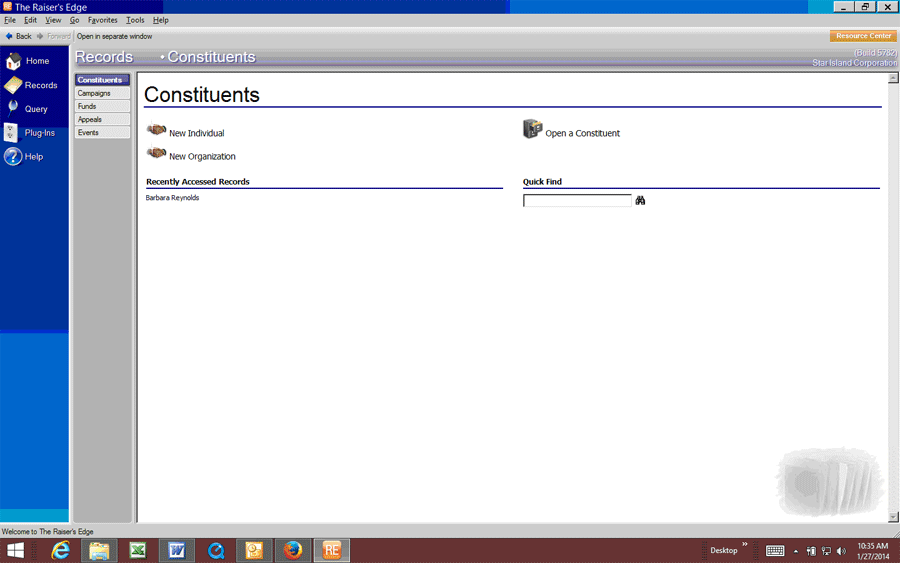
Records > Constituents
- Add A Constituent – Allows you to add a brand new constituent to our database.
- Open A Constituent – Allows you to search for a constituent
- Quick Find – Allows you to quickly open a specific constituent.
- Recently Accessed Records – Once you open a constituent, they will appear here for easy access.
Viewing The Constituent Record
When you open a constituent record, your default screen is the BIO tab. This is where you will find name, address and other personal information about the constituent.

The tabs on the Constituent Records are: BIO 1, BIO 2, ADDRESSES, ADDRESSES/SALUTATIONS, RELATIONSHIPS, EVENTS
The viewable/editable data on the BIO 1 tab you may have to make changes to includes:
- Name – First, Last, Middle, Title, Suffix – Constituent’s legal name
- Aliases – Other names a constituent may have gone by for search purposes
- Maiden Name – Optional: can help with searching.
- Nickname – First Name Only – Used in Salutations if a nickname or shortened name is preferred. Example: Legal Name – Thomas. Nickname: Tom
- Birth date – Used to calculate age as well as track birthday.
- Gender – Optional
- Spouse – Button to access Spouse information in a pop-up. If a name is already listed as spouse, it will access listed spouse information or if blank, you can add a spouse if necessary.
- Address – Full address including COUNTRY.
- Phone – Listing of phone types, including Home, Work, Email, Email2, Personal Cell
The viewable/editable data on the EVENTS tab you may have to make changes to include:
- List of Events – Known events that this individual has attended.
Accessing Your Registration Report Query
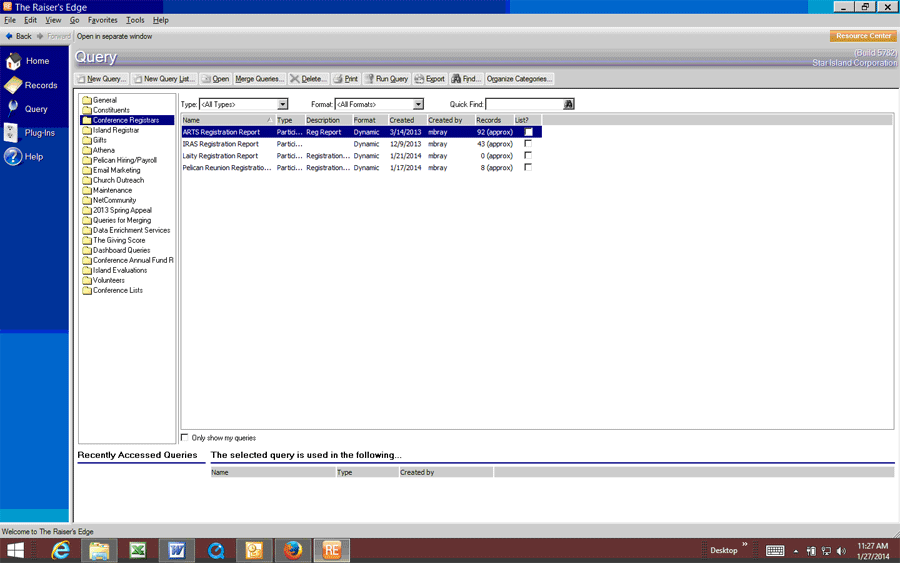
Reports Are Set Up As Queries.
On the left-hand side of the screen, click “QUERY”. From the Query Folders menu, click “Conference Registrars”.
Query > Conference Registrar Folder
Here you will find query reports for all the 2014 conference. Find your conference and double-click to run the query report. – *NOTE: A warning will pop up indicating you do not have permission to modify this query report – Click OK.
The query report will open on the screen and looks like an Excel worksheet. This contains all the data about the participants in your event.

Default Sort Order is by NAME. You can change the sort order but will not be able to SAVE it. If you would like it permanently changed, please contact the Island Registrar to adjust the query for you. Accessing a registration form from the query: Double-click on the row of the individual for which you would like to bring up their registration data. This is a shortcut to access the record.
Exporting The Query Report To Excel:
On the FILE menu at the top of the screen, drop it down and select EXPORT. An Export pop-up window will appear. Select your export format and export file name.
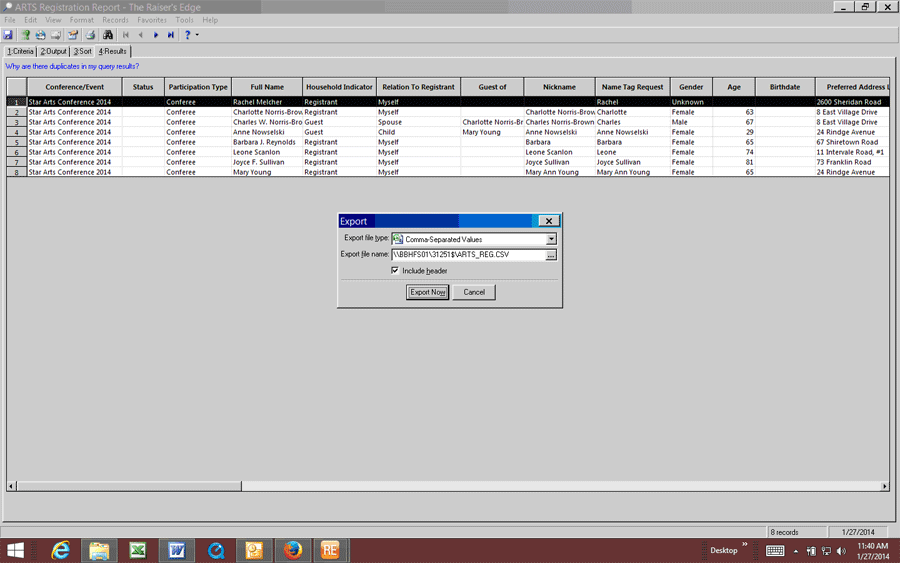
- Format: Excel is most common and easiest. – Dropdown the selection box and scroll down to Excel 97-2000 and select. If you have other software you use, you can choose the appropriate file type.
- Export File Name: Click the “…” to the right of the filename box. It has a default name and location filled in, but that will save to the HOSTED SERVER and you won’t be able to access it.
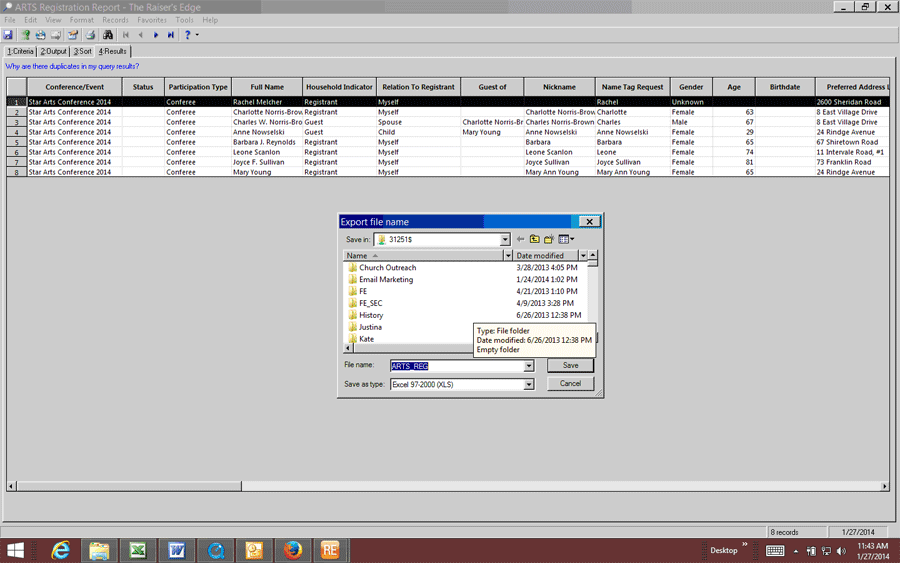
- Save In Dropdown – *VERY IMPORTANT* – click the down arrow to the right of the save location box. Choose “LOCAL DISK C: on XXX” , this will take you to the root of your local C: drive (your computer) Navigate the files folders until you find a location that you normally save documents. (i.e: USERS>MIKE BRAY>MY DOCUMENTS).
- Filename – Choose a name for this downloaded file.
- Save As: – Should display the method you previously choose.
Click Save Button. Then on the prior window click “Export Now” The query will export to your local computer.
If finished with the query report screen, drop-down the FILE menu and select CLOSE.